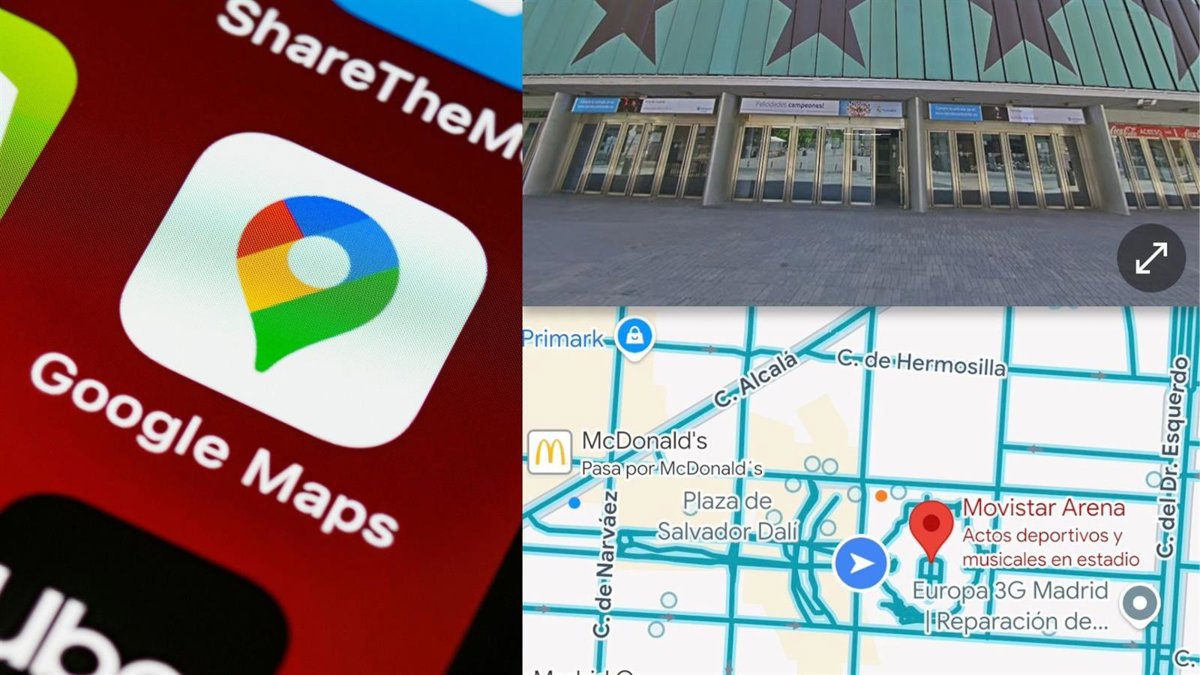
But there is a function that not everyone knows, and that is that you can divide the screen to use both at the same time. Here’s how to unlock this “secret” view on Google Maps.
SPLIT SCREEN FOR BROWSING WITH STREET VIEW
There are several ways to use split screen. On the one hand, it is useful for using Street View without having to press the arrows to move around the map. This is how it works step by step:
First, search for the destination on Google Maps. The results panel will open with the name, reviews, directions, etc. A Street View image will appear in a small square above it. If you click on it, this tool will be activated in full screen.
Once the screen is full, just click on the arrows that appear in the lower right corner to reduce the size and the screen will be divided. At the top you will see the Street View view with the orientation arrows and at the bottom you will see Google Maps with the streets marked in blue.
If you click on any of the streets in blue, the Street View will accompany you. In the same way, if you press the Street View arrows, the map below will indicate which area you are in.
SPLIT SCREEN TO FOLLOW A SPECIFIC ROUTE
On the other hand, the split screen is a complementary function to that of directions. Normally, Google Maps shows you the route on the map with a continuous line if it is by car or with dots if it is on foot. With the split screen you can follow the route with images to better locate yourself.
To access it, you must follow the same steps as the previous one. Search for the destination and then click on the option for how to get there. The suggested route will appear and again a square with images in the lower left corner.
If you click on it, the split screen will automatically open, leaving the images at the top and the route on the map with the directions at the bottom.
To continue with the route, you can slide your finger in the lower area to see step by step the route that the application recommends so that you are familiar with it when you take it.
Latest news on these topics